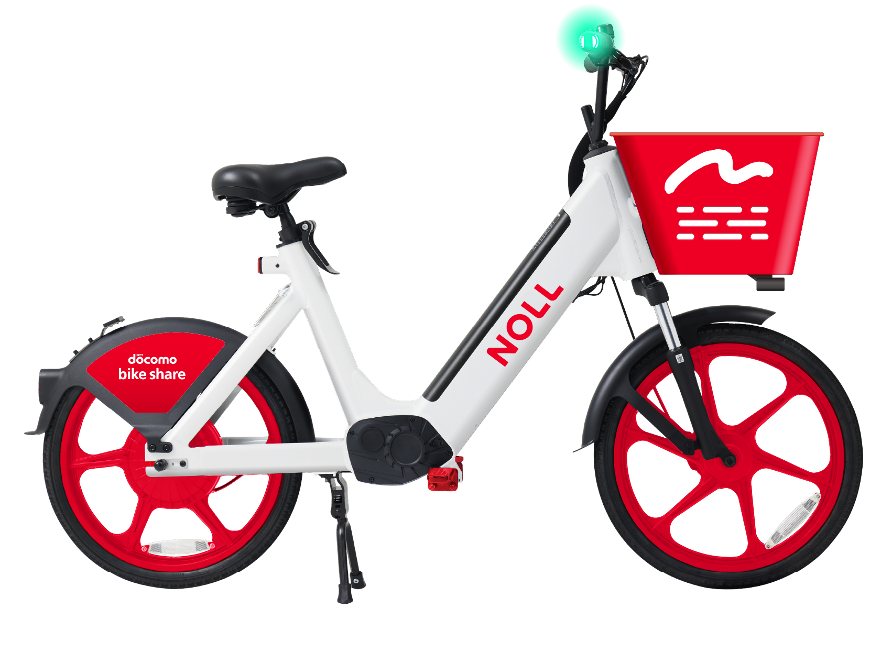

docomo bike share service has been renamed to "NOLL".
FAQ

User Guide

Ready to ride with the app

After downloading the app, start renting easily on your smartphone. Available 24 hours a day.

For First-Time Users

About Registration

Register in the App

Scan the QR code on a sign or our website to install the app, log in with your d account, Google account, or Apple account, and complete your payment method setup.

If you use d-payment, please log in with your d account.

What You Need to Register

1

Smartphone

2

External Account

(d account, Google account, or Apple account)

3

Credit Card

(Not required if using d-payment)

How to Use

How to Borrow

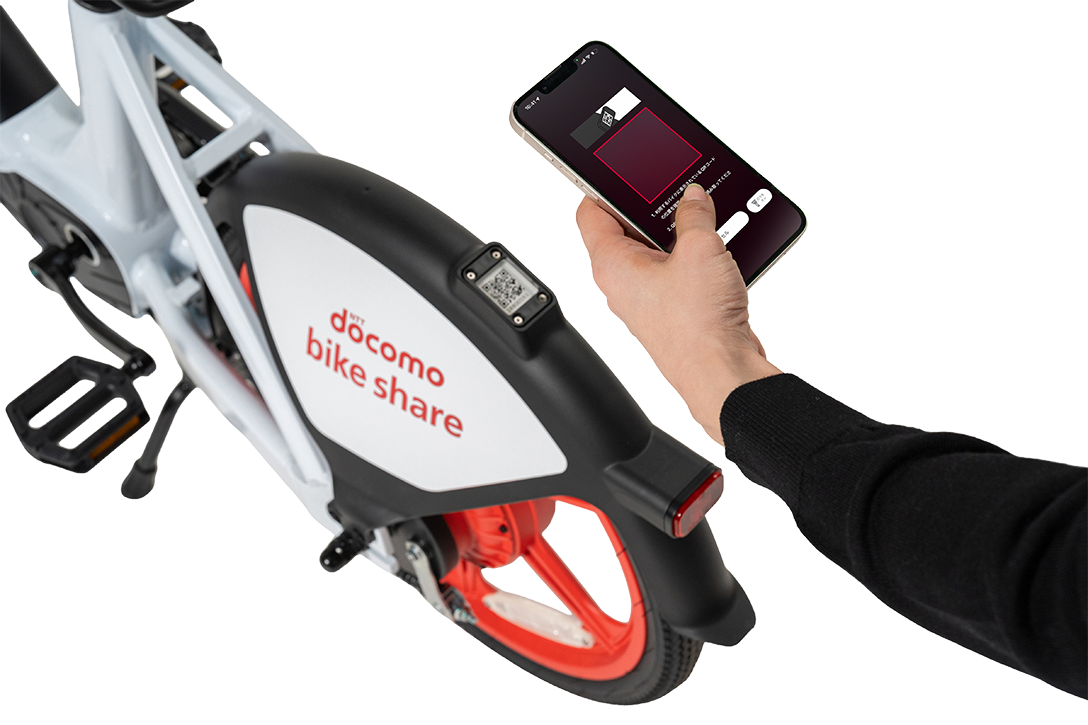
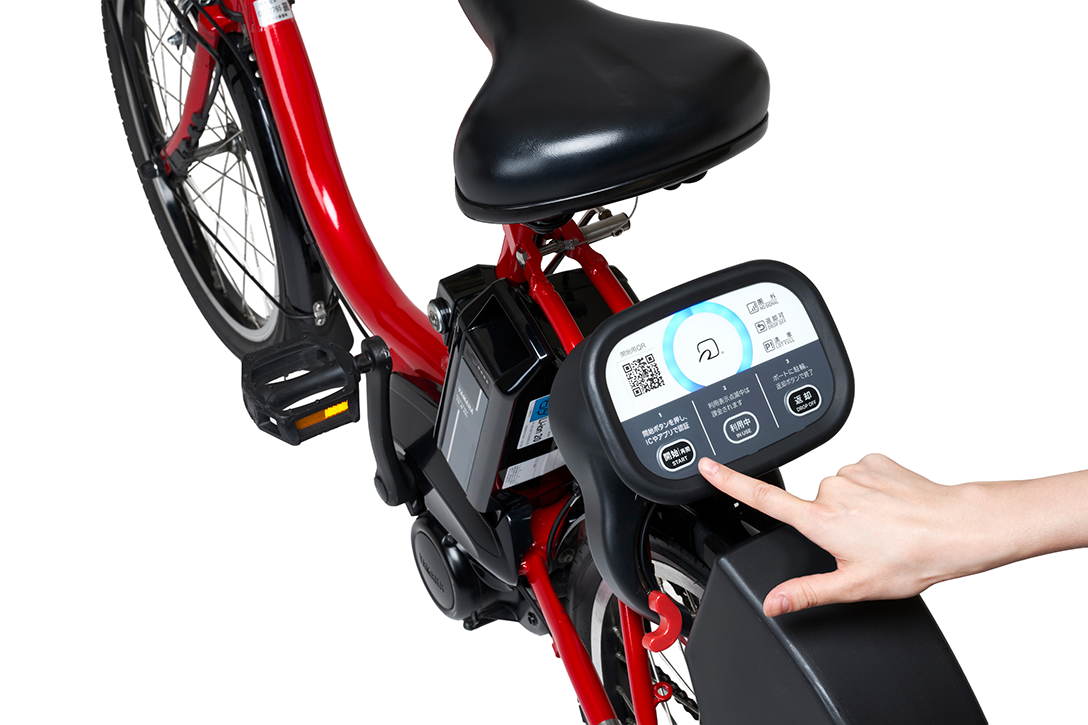
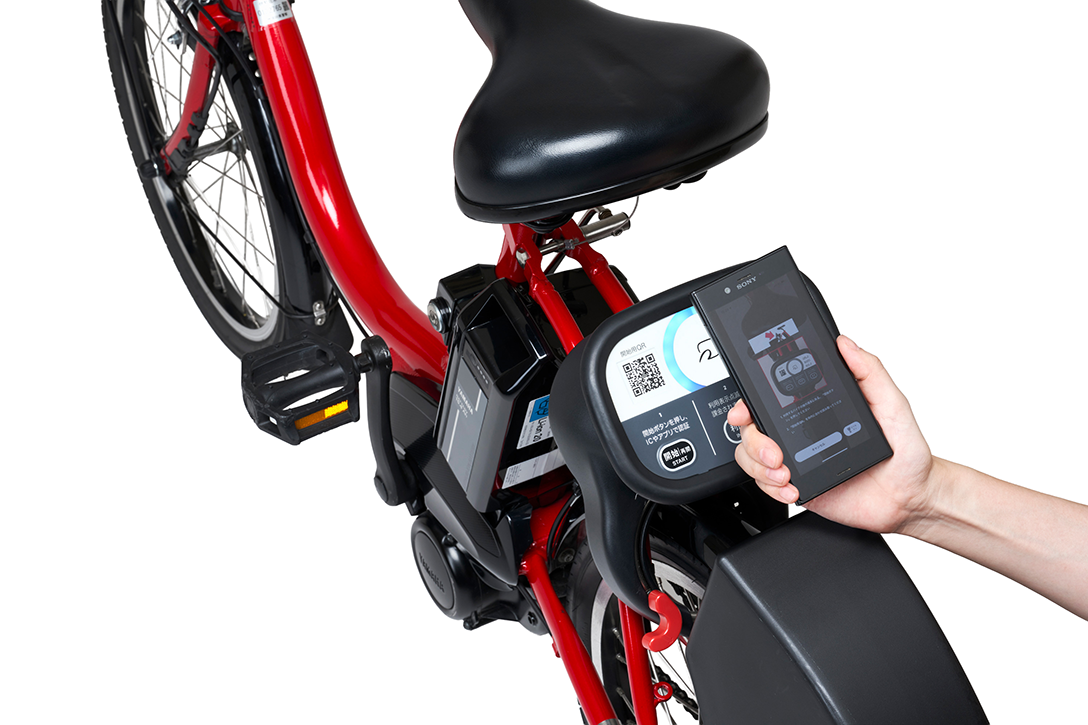
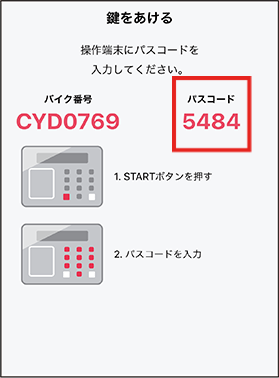
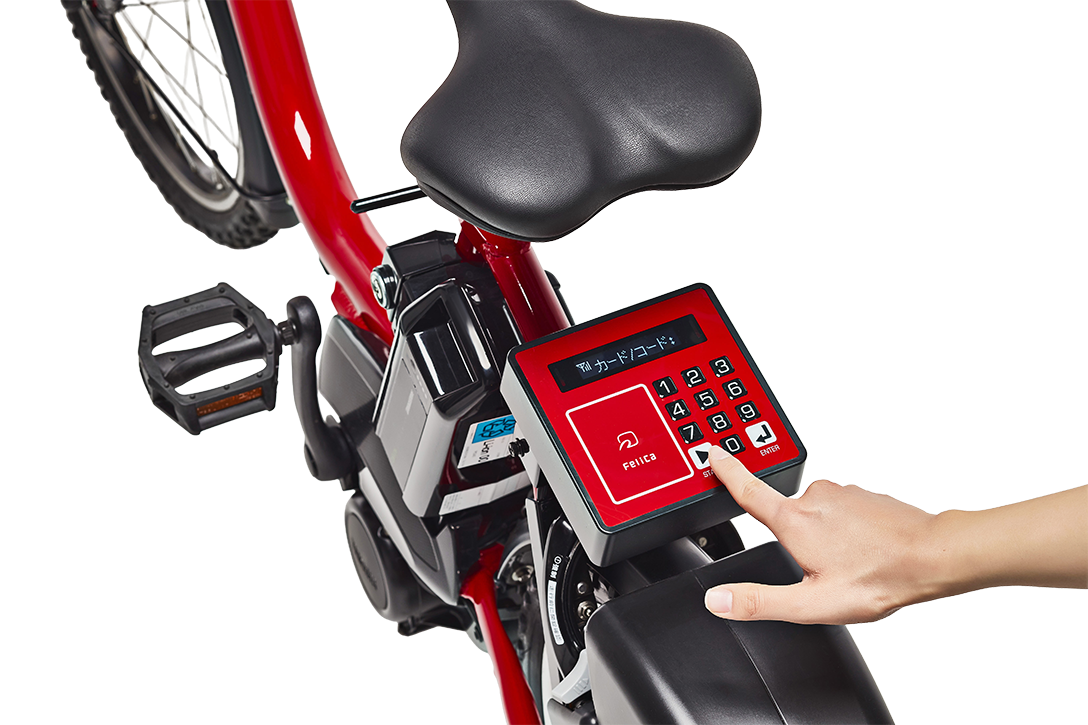
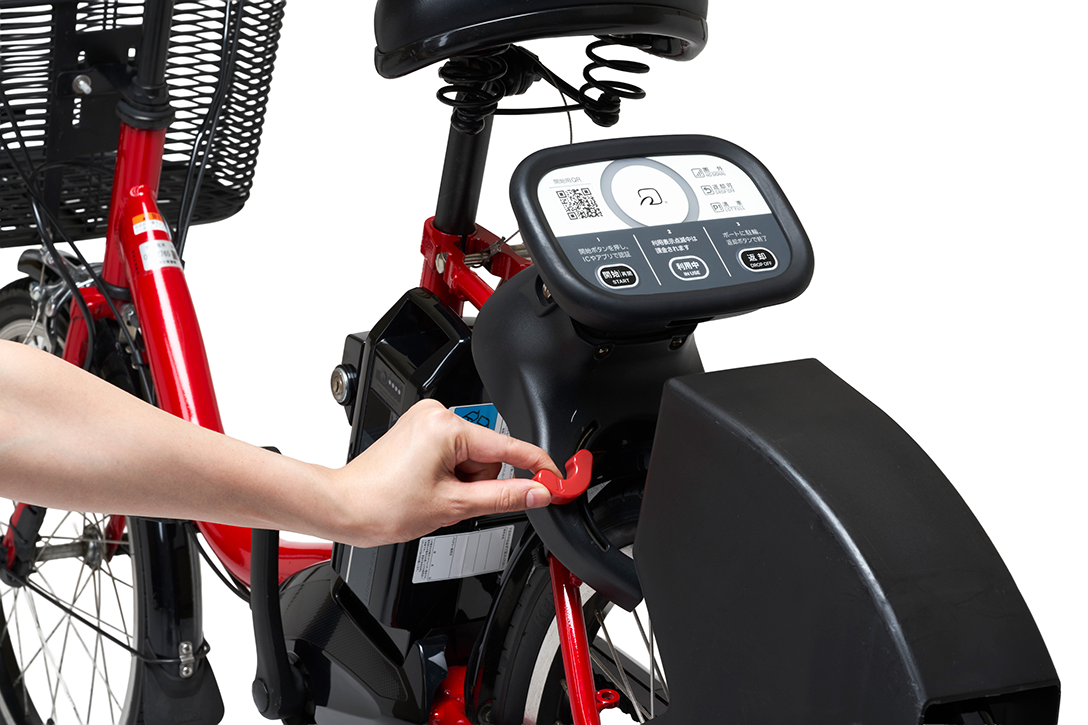
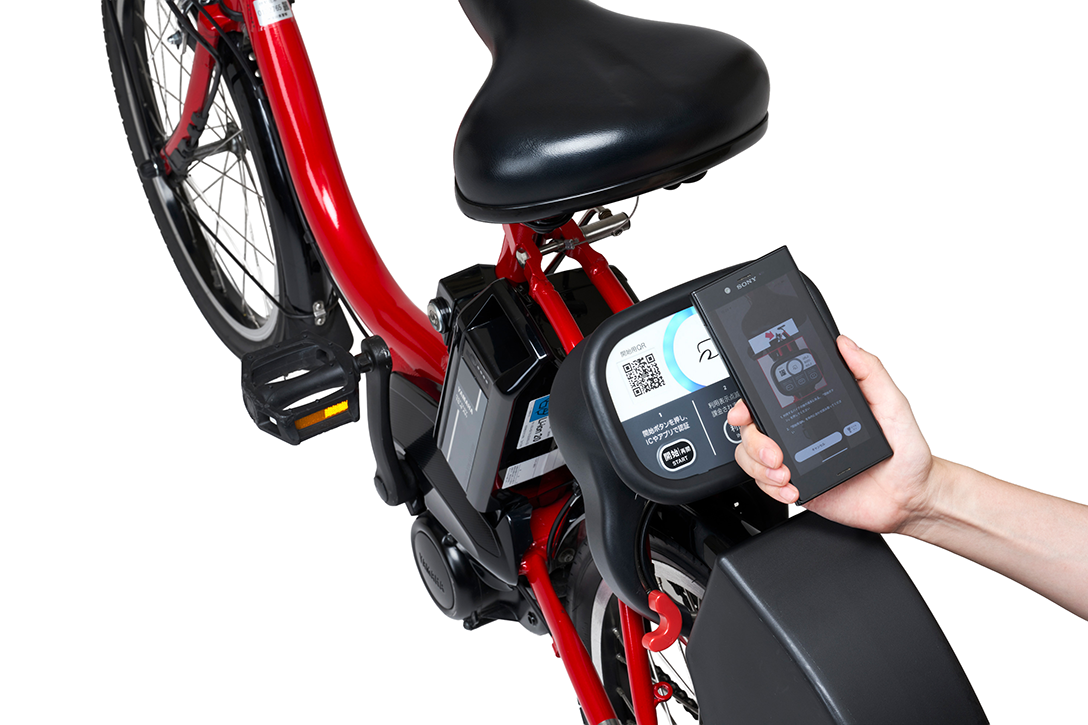
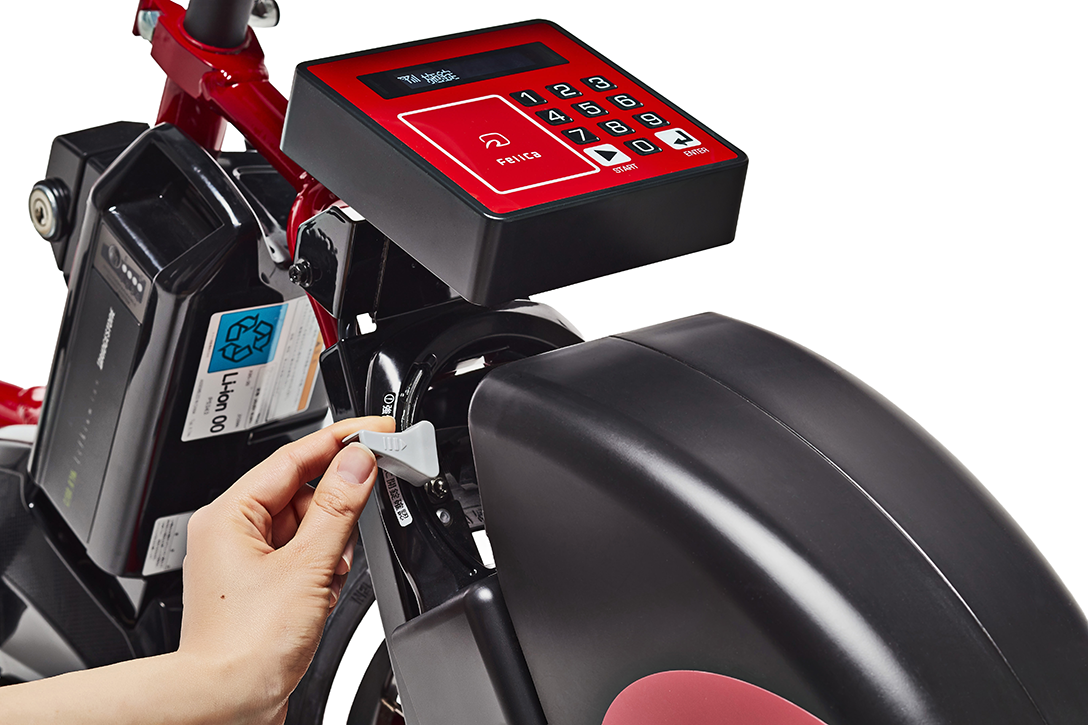
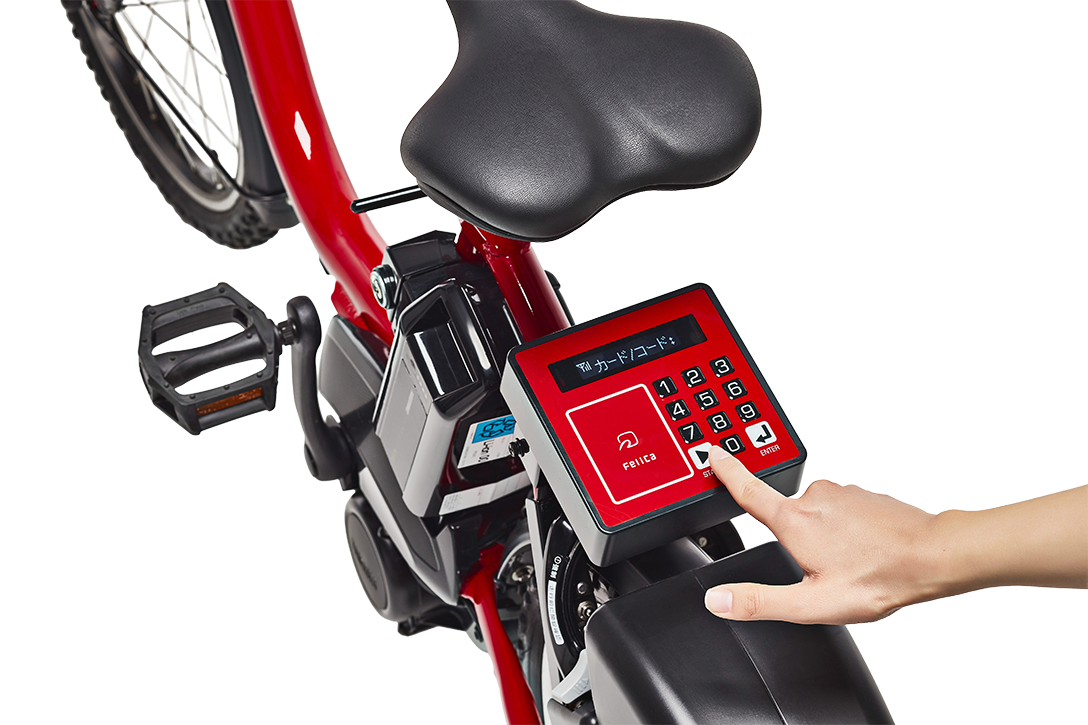
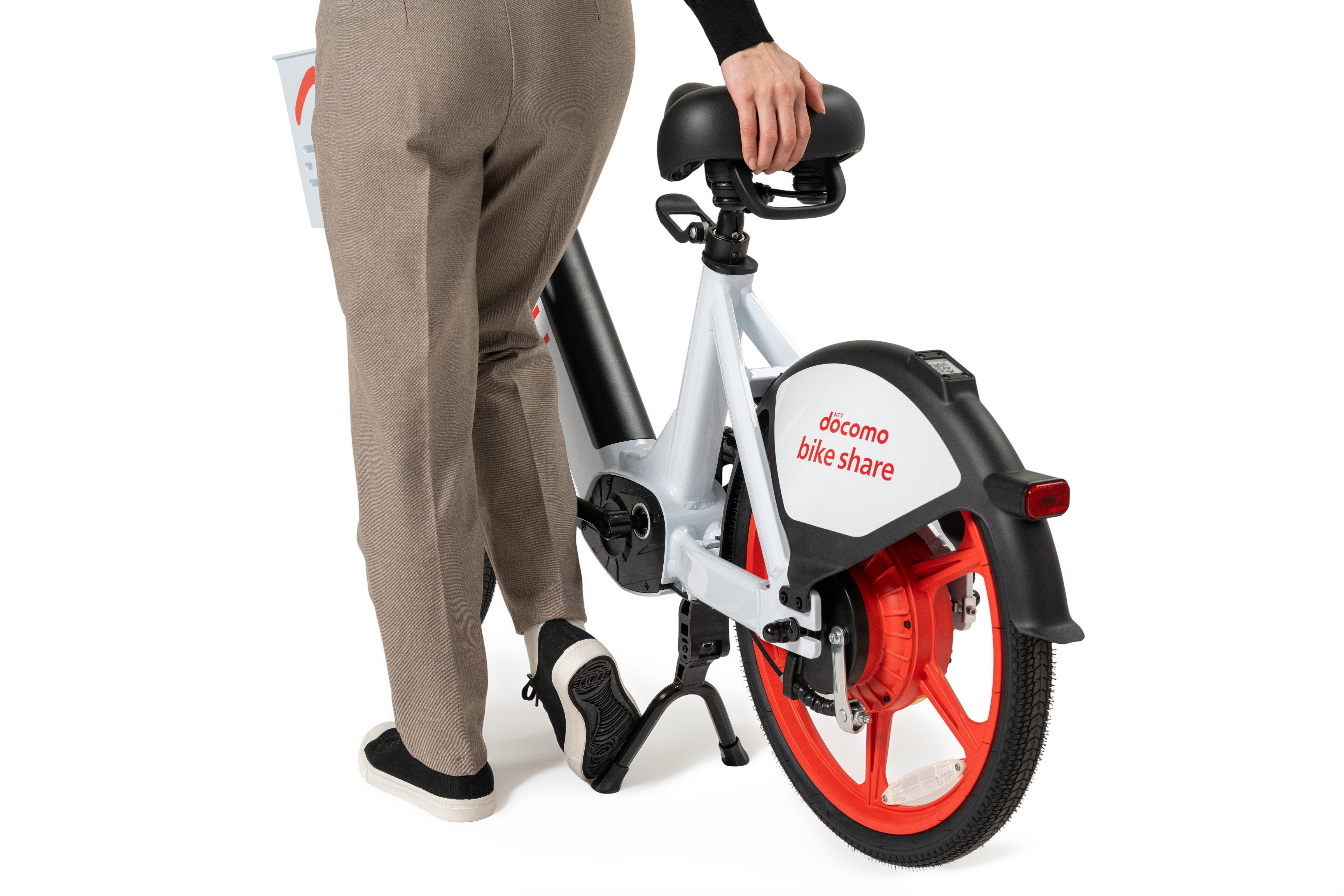
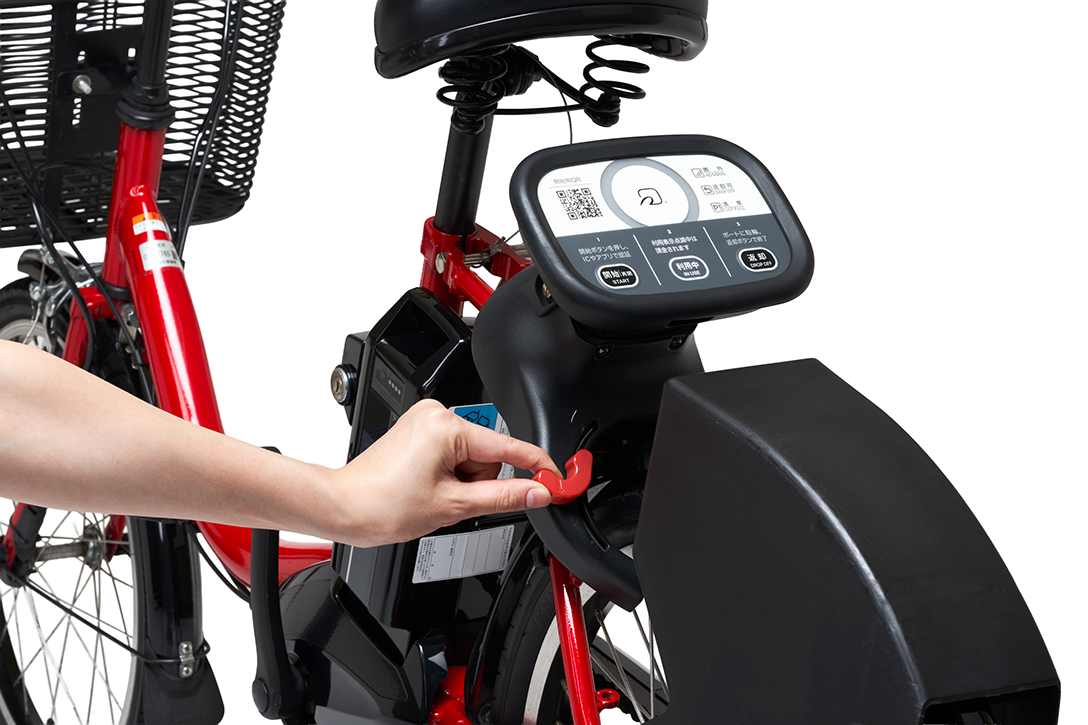
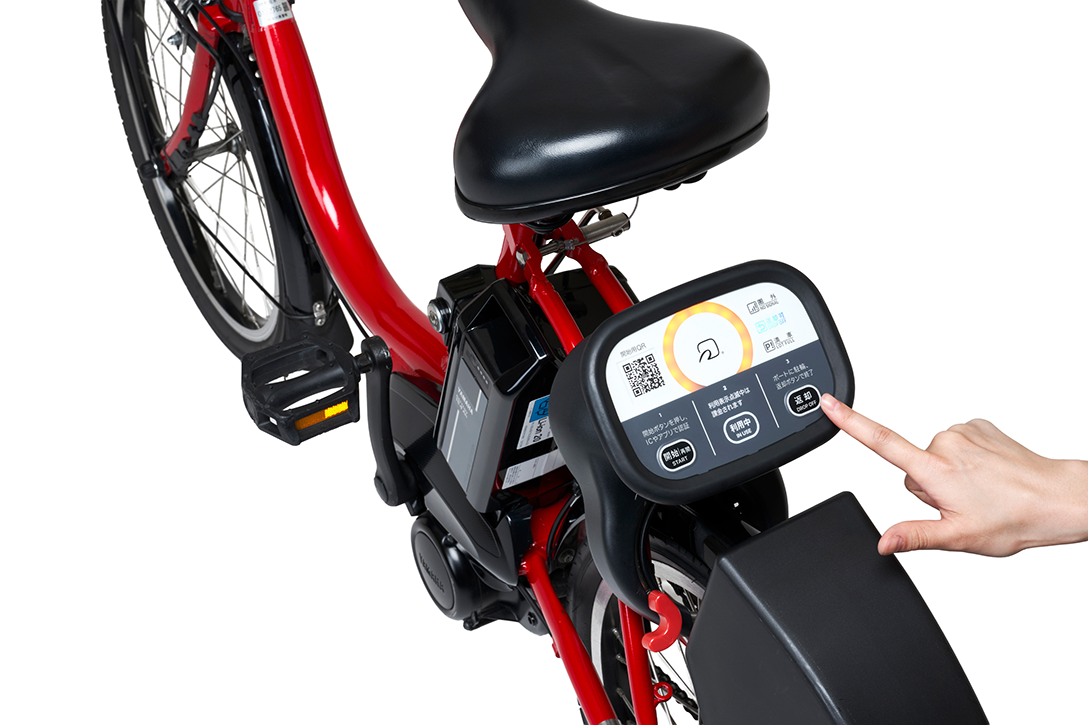
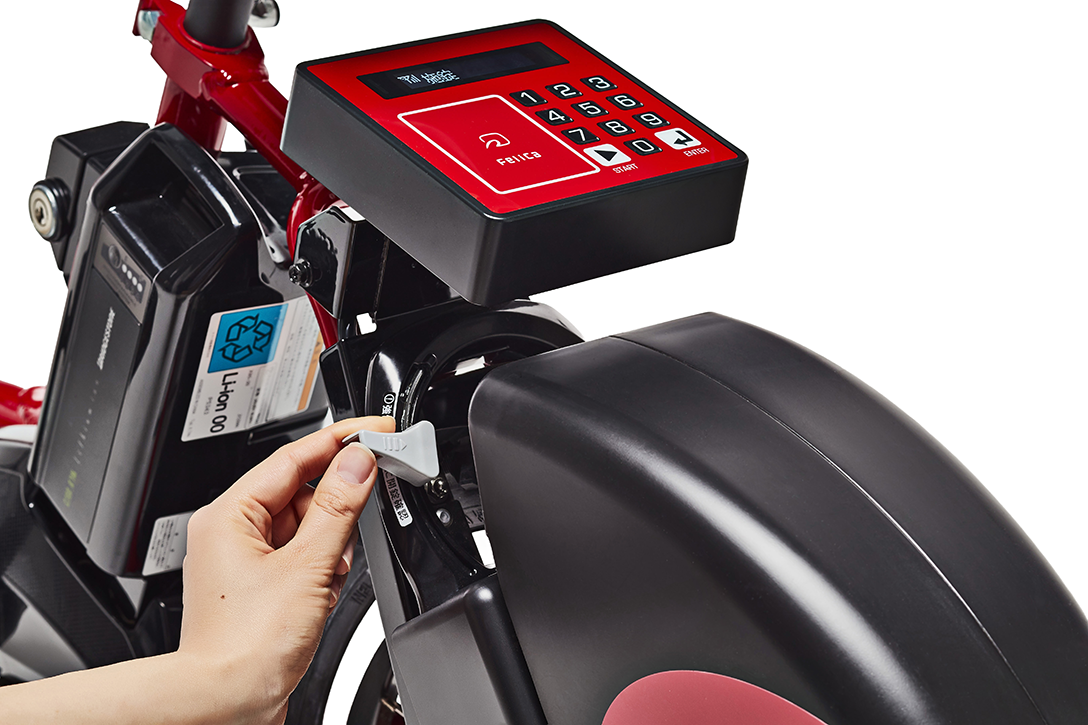
Unlock with the app in front of the vehicle

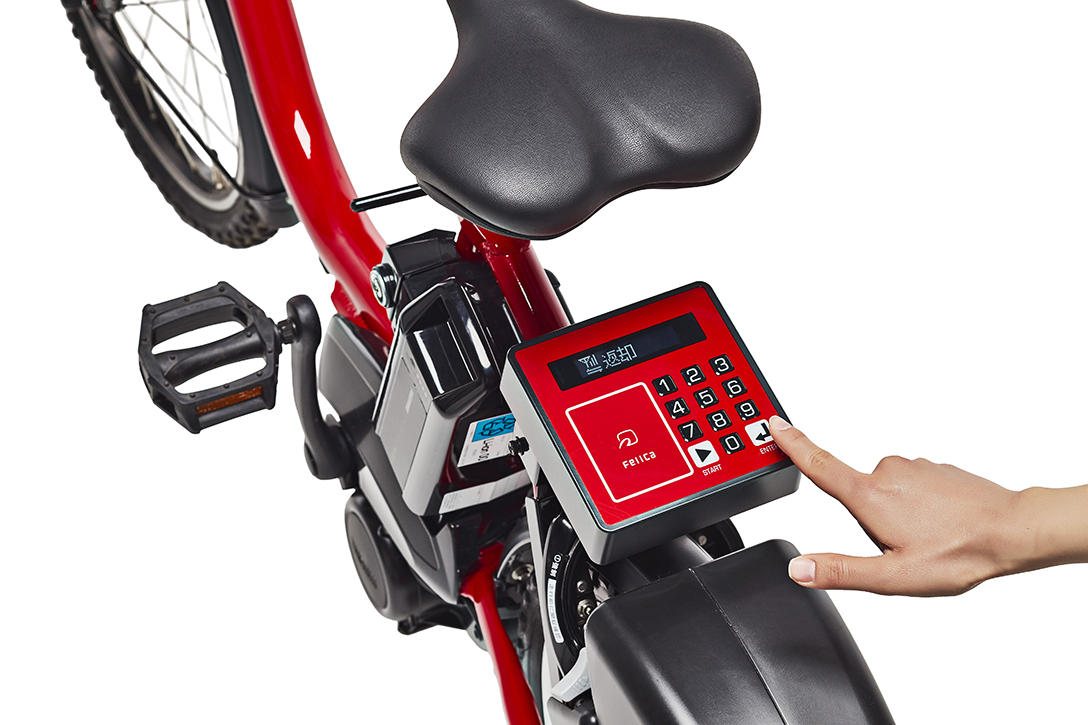
The unlocking procedure differs depending on the type of lock on the vehicle.

* Fees are charged from the moment you unlock the vehicle.
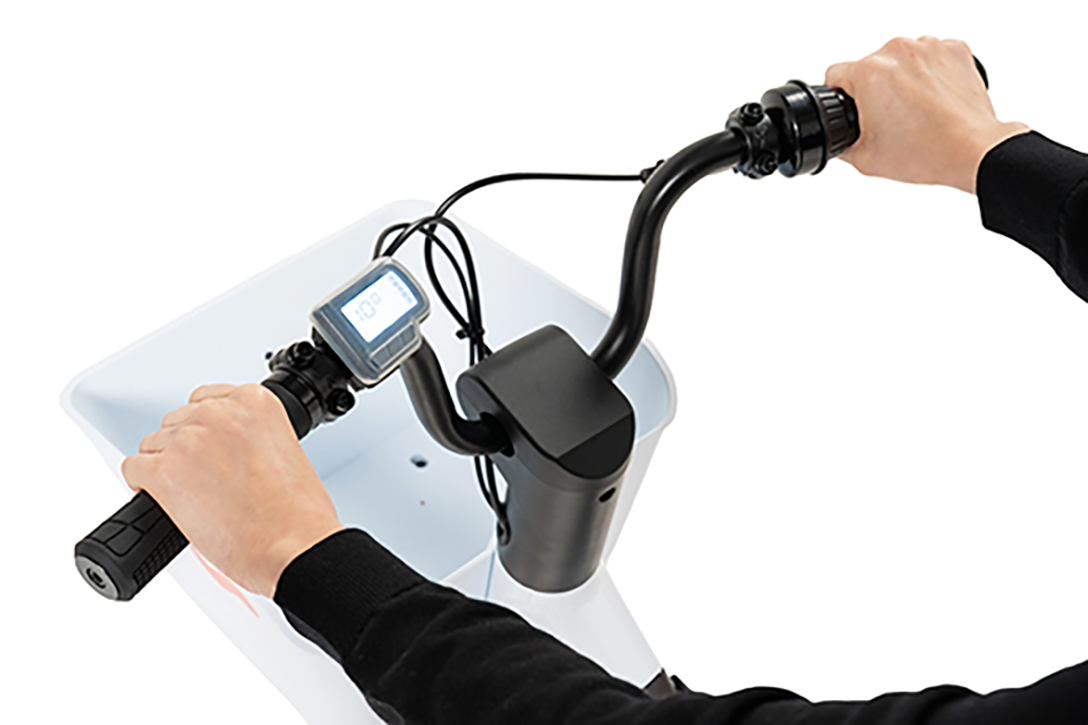
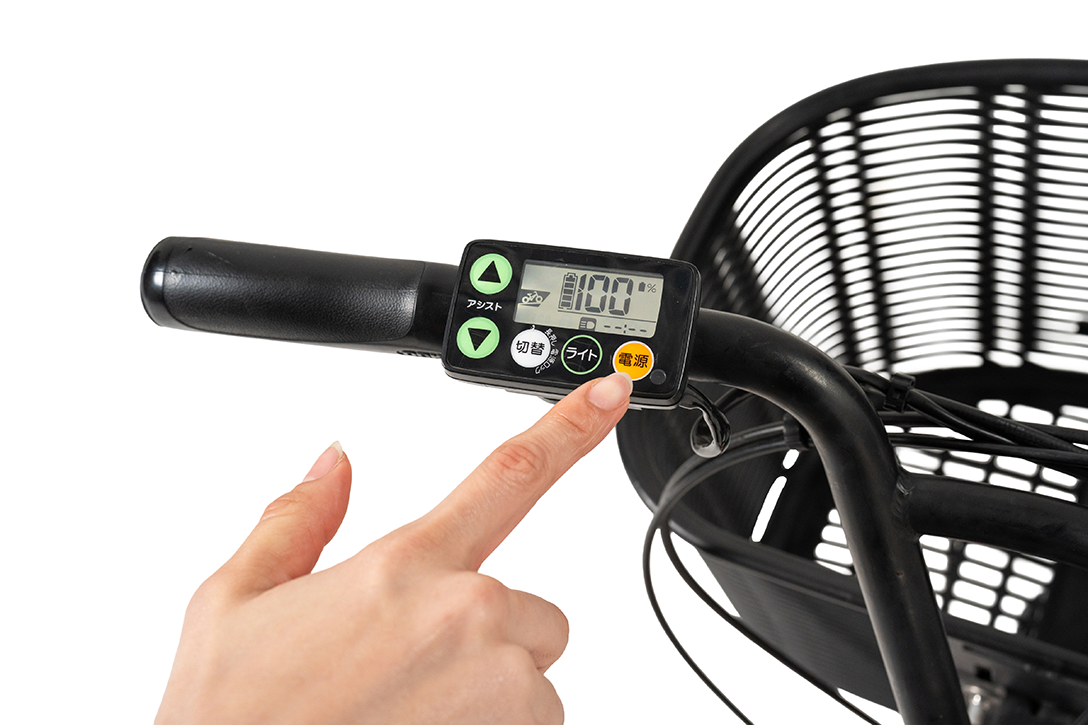
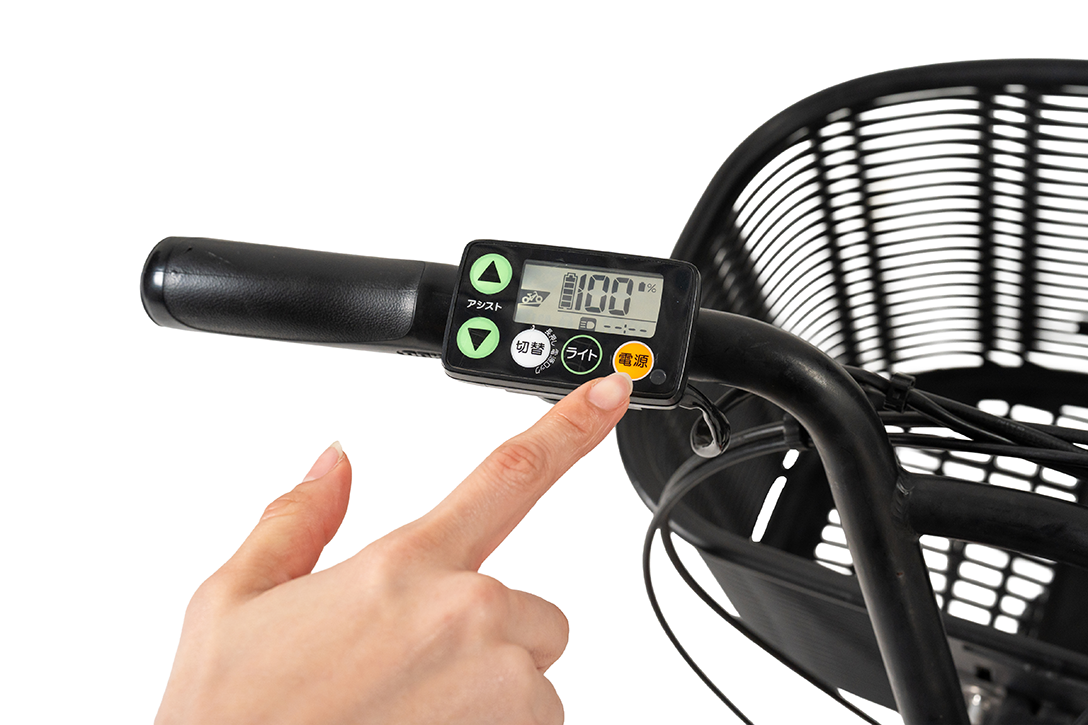
Before unlocking, be sure to check the battery level and the condition of the vehicle.

How to Use

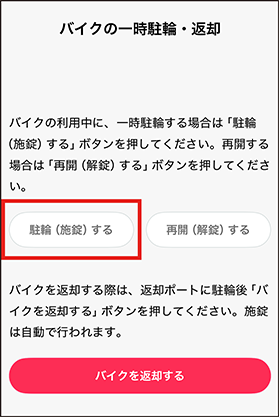
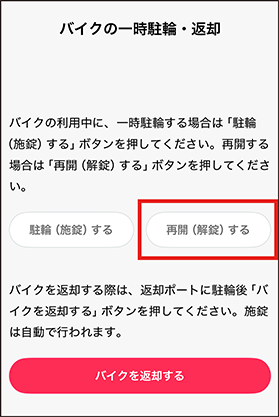
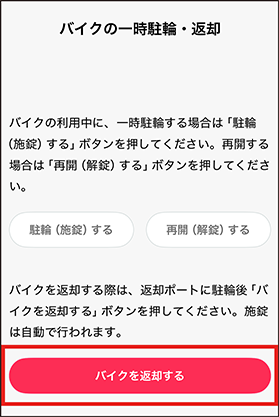
How to Park Temporarily

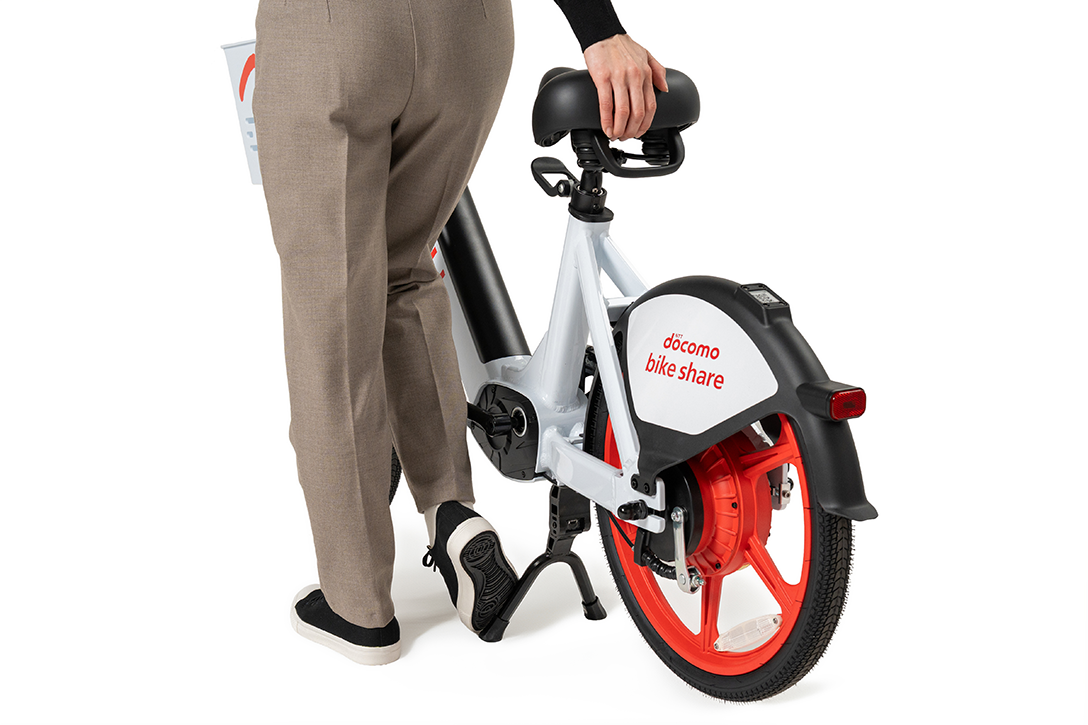
Park in a safe place.

Please park temporarily in a place where you will not obstruct pedestrians.

* Usage fees are charged until the vehicle is returned.

* For time-based passes, temporary parking time is included in your usage time.

How to Use

How to Return

Return the vehicle at a cycle port

Please return the vehicle to a cycle port shown as "Available for return" on the map in the app. Vehicles cannot be returned outside a port.

* Some ports have a limit on the number of vehicles that can be parked. If a port is full, please use a nearby port shown on the app map.
Also, please note that fees continue to accrue until the return process is complete.

How to Use

Return Port Reservation

Reserve a return port after unlocking

While riding, you can reserve the port you plan to return to.
Reserving in advance gives you peace of mind when you return.

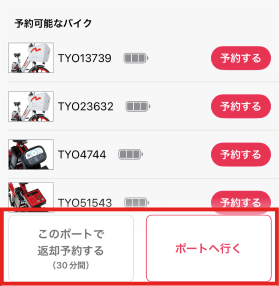
While you are riding a vehicle, you can make a reservation from the port detail screen in the app. Tap the "Reserve this port for return" button on the detail screen of the port you plan to return to, and once you have reviewed the notes, a parking space is held for you for 30 minutes. At ports with a limited number of parking spaces, we recommend reserving a return port after unlocking.

Reserving a return port from the port detail screen in the app
  • Return port reservations cannot be made while a port is full.

  • If the port has space available, you can return the vehicle without making a return port reservation.

    * If your return reservation falls outside business hours, please return the vehicle during business hours.

  • If the return port reservation time falls outside business hours, the reservation will be cancelled. Please return the vehicle during business hours.

  • If you return the vehicle at a port other than the one you reserved, the return reservation is cancelled automatically.

Detailed Guides

Other Information

Contact Us

NOLL

\ Easy sign-up on your smartphone /

Download the NOLL App
and Register Now

QRコード

User Guide

Ready to ride with the app

After downloading the app,
start renting easily on your smartphone. Available 24 hours a day.

For First-Time Users

About Registration

Register in the App

Scan the QR code on a sign or our website to install the app, log in with your d account, Google account, or Apple account, and complete your payment method setup.

If you use d-payment, please log in with your d account.

What You Need to Register

1

Smartphone

2

External Account

(d account, Google account, or Apple account)

3

Credit Card

(Not required if using d-payment)

How to Use

How to Borrow

Unlock with the app in front of the vehicle

The unlocking procedure differs depending on the type of lock on the vehicle.

* Fees are charged from the moment you unlock the vehicle.
Before unlocking, be sure to check the battery level and the condition of the vehicle.

How to Use

How to Park Temporarily

Park in a safe place.

Please park temporarily in a place where you will not obstruct pedestrians.

* Usage fees are charged until the vehicle is returned.

* For time-based passes, temporary parking time is included in your usage time.

How to Use

How to Return

Return the vehicle at a cycle port

Please return the vehicle to a cycle port shown as "Available for return" on the map in the app. Vehicles cannot be returned outside a port.

* Some ports have a limit on the number of vehicles that can be parked. If a port is full, please use a nearby port shown on the app map.
Also, please note that fees continue to accrue until the return process is complete.

How to Use

Return Port Reservation

Reserve a return port after unlocking

While riding, you can reserve the port you plan to return to.
Reserving in advance gives you peace of mind when you return.

While you are riding a vehicle, you can make a reservation from the port detail screen in the app. Tap the "Reserve this port for return" button on the detail screen of the port you plan to return to, and once you have reviewed the notes, a parking space is held for you for 30 minutes. At ports with a limited number of parking spaces, we recommend reserving a return port after unlocking.

Reserving a return port from the port detail screen in the app
  • Return port reservations cannot be made while a port is full.

  • If the port has space available, you can return the vehicle without making a return port reservation.

    * If your return reservation falls outside business hours, please return the vehicle during business hours.

  • If the return port reservation time falls outside business hours, the reservation will be cancelled. Please return the vehicle during business hours.

  • If you return the vehicle at a port other than the one you reserved, the return reservation is cancelled automatically.

Detailed Guides

Other Information

Contact Us